Conversion tracking
Who this is for
This page is for growth, marketing, ecommerce, and operations teams that need to connect ShortURL clicks to outcomes such as leads, sign-ups, purchases, or revenue.
Before you start
- Confirm your plan includes conversion tracking. Lead tracking, funnel visualization, and active conversion configs require Plus or higher. Sales tracking, revenue attribution, and Stripe integration require Pro or higher.
- Confirm you can edit the website where the conversion happens.
- Decide which domain, campaign, or landing page should be measured.
- Prepare any privacy notices, cookie banners, consent records, or opt-out handling required for your audience.
What to do - Set up a conversion pixel
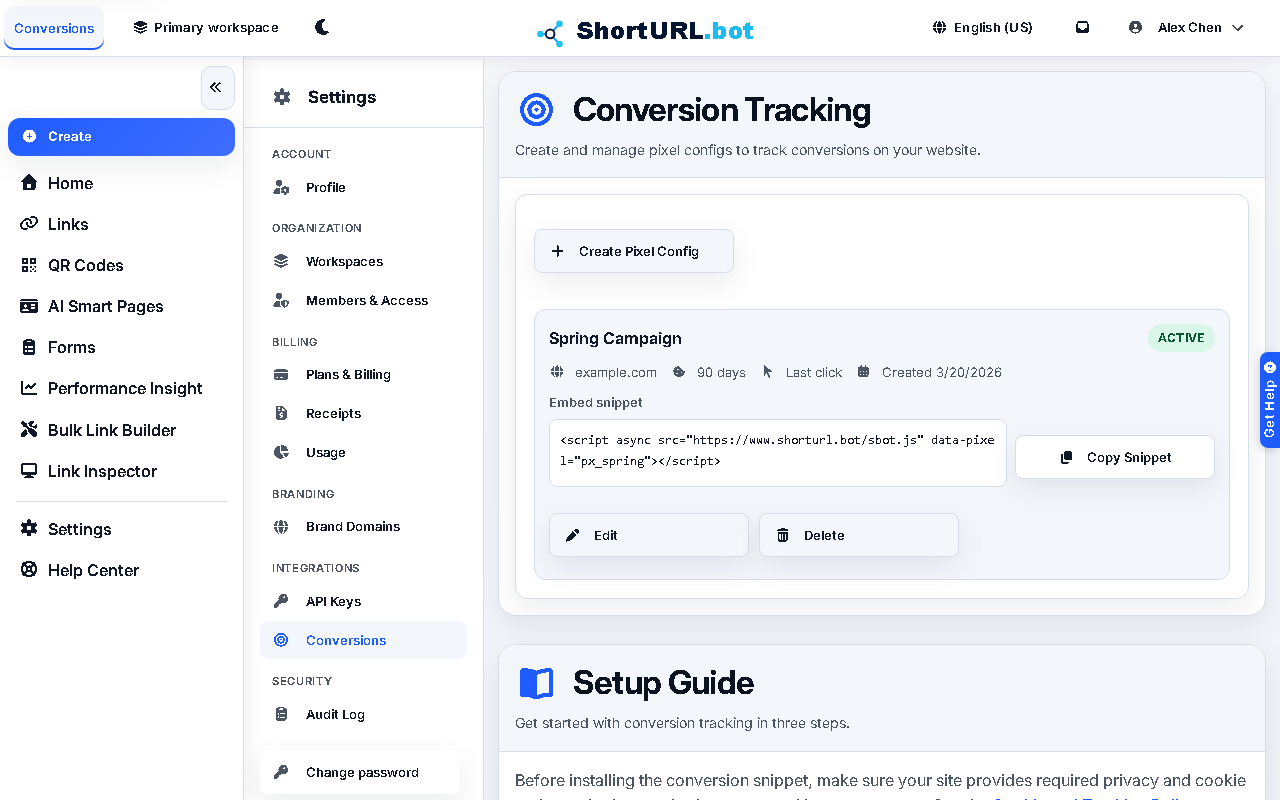
- Open Settings > Analytics > Conversions (
/app/settings/conversions). - Create a pixel configuration with a clear name, the website domain, cookie duration, and attribution model.
- Copy the generated script, which uses
https://www.shorturl.bot/sbot.jswith your pixel id. - Install the script on the pages where you need attribution. Place it through your site template, tag manager, or application code so it loads before conversion events fire.
- Send lead or sales events only after your consent and notice requirements are satisfied.
- Return to conversion reporting to compare campaign channels, funnel drop-off, and downstream outcomes.
Use it well
- Treat conversion tracking as measurement infrastructure. Test it on a non-critical page before relying on it for a launch report.
- Use consistent campaign tags and link naming so conversion reports can be compared with Performance Insight.
- Keep tracking legal and transparent. If you collect or track information about people, you are responsible for required notices, consent, and opt-outs.
- Watch plan limits before creating many configs. Plus includes 3 active configs, Pro includes 10, Premium includes 50, and Enterprise can use custom limits.