Performance Insight
Who this is for
This page is for users reviewing campaign results, operational traffic patterns, or ongoing link performance inside the authenticated app.
Performance Insight depth depends on the active plan: Free keeps 30 days of history, Go starts the KPI dashboard, Plus adds overview, channel mix, top assets, campaign performance, and asset downloads, Pro adds geography, device, best-time, diagnostics, and click-detail views, and Premium adds full click-detail export with user-agent information and masked visitor IP.
Before you start
- Know which workspace, campaign, or channel you are evaluating.
- Decide whether you are looking for live monitoring, trend reading, or a stakeholder summary.
- Confirm whether the reporting module, retention window, or export you need is included in the active plan.
- Keep the naming conventions from your link creation workflow nearby so reported assets are easy to identify.
What to do — Review click analytics and top links
- Open Performance Insight from the app.
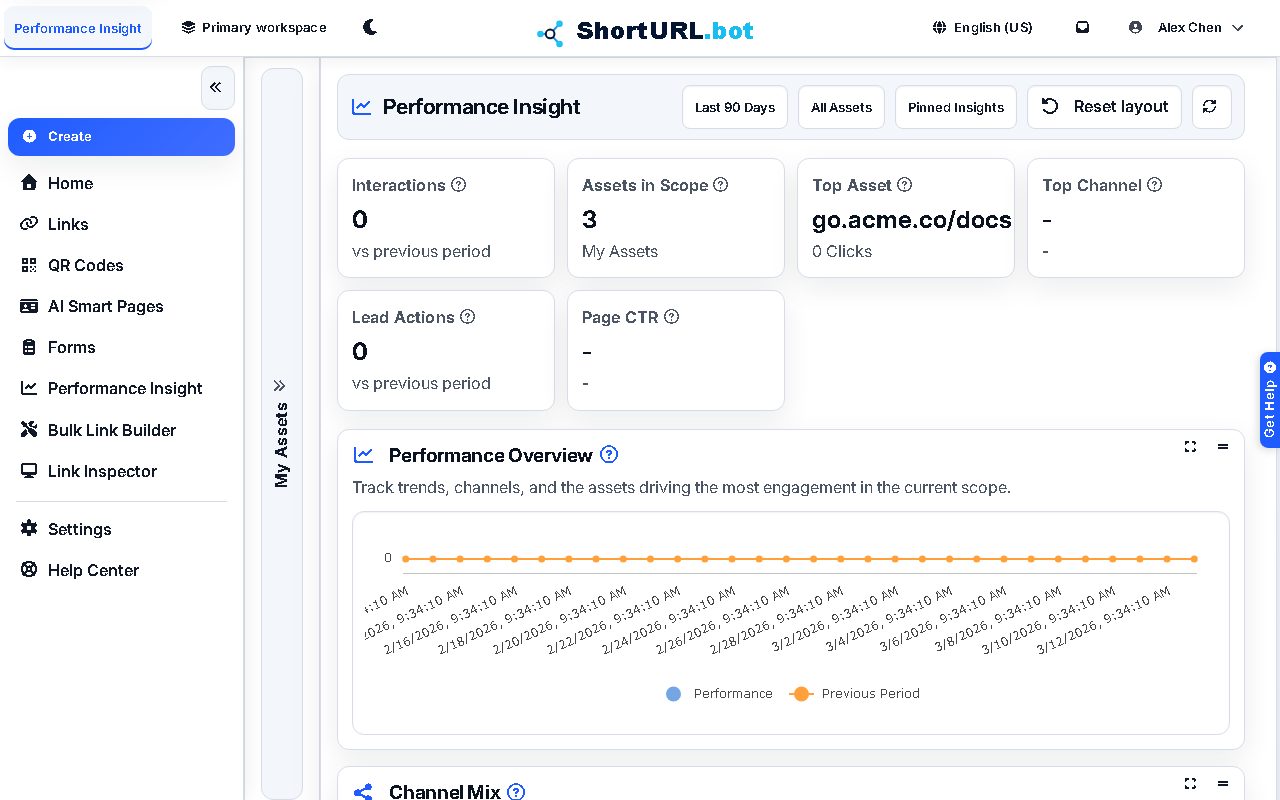
- Review the main charts and summary cards for the relevant time window.
- Check top performers to see which links or QR assets are driving the most activity.
- Compare current activity against the campaign plan, distribution timeline, or expected channel mix.
- Use the results to decide whether destinations, link variants, or channel weighting need adjustment.
Use it well — Analytics review best practices
- Analytics are more useful when the naming model was clean at creation time. That is why back-halves, campaign templates, and tagging matter early.
- Use short review cycles during live launches. Performance Insight is most operationally valuable when the results still change what you do next.
- Treat exports and visitor fields as Premium-only when planning downstream reporting that needs click-detail files, user-agent information, or masked visitor IP.
- If the account is close to limits, pair this page with Usage and plan limits so reporting and capacity decisions stay connected.