QR codes workspace
Who this is for
This page is for users creating QR codes for campaigns, print material, events, packaging, or any workflow that needs a scannable version of a managed short link.
Before you start
- Sign in to the app so you can save QR history and reuse account settings.
- Confirm the destination URL and domain choice before generating assets.
- Do not choose
2s.ggfor new QR codes. Existing QR codes that already use2s.ggcontinue to resolve. - Confirm the active plan before promising styling, export formats, or post-publish changes: Free includes PNG export, tags, and UTM; Go adds custom QR styling and JPEG/SVG export; Plus and higher add destination updates, scheduling, expiry, after-expiry redirects, and QR list export.
- Decide whether the QR should remain evergreen or follow a lifecycle window.
What to do — Create and download branded QR codes
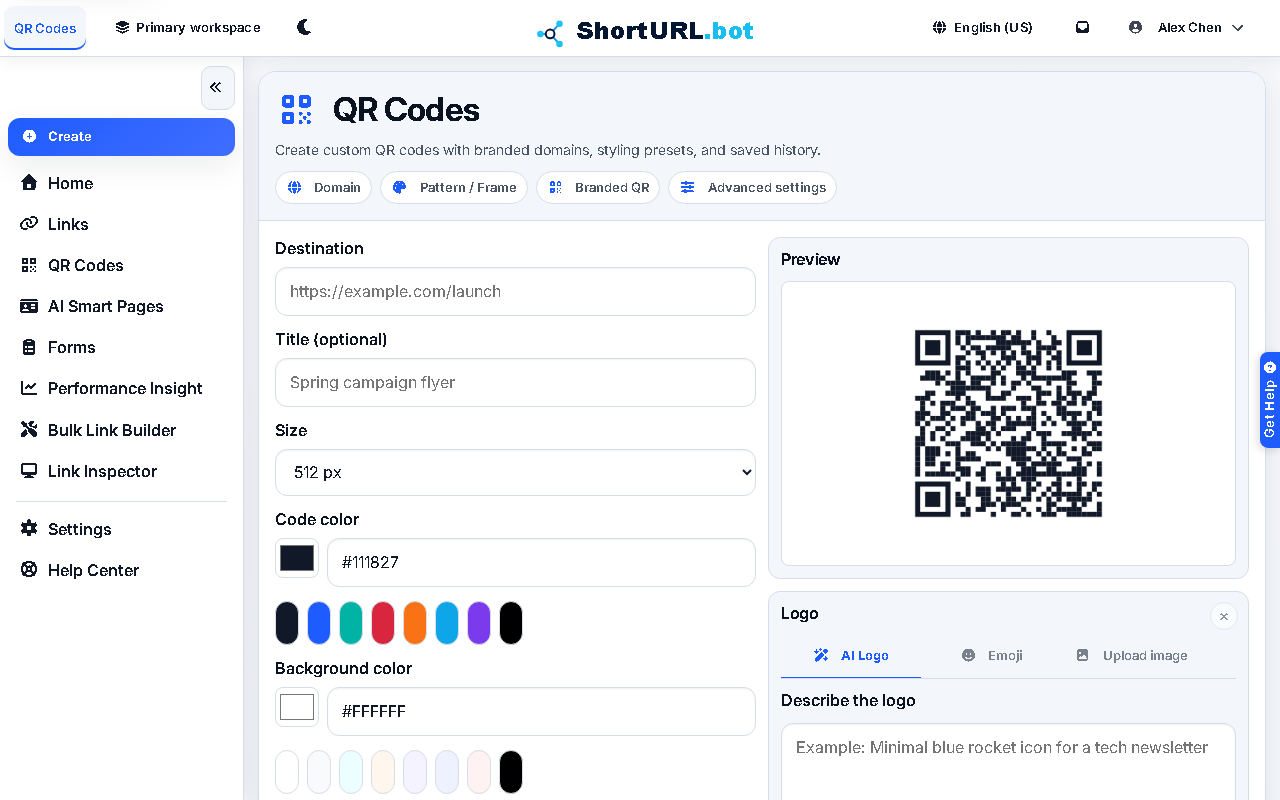
- Open QR Codes from the app sidebar (
/app/qr) and enter the destination URL. - Choose the domain and optional back-half that the QR should resolve to.
- Set advanced options when your plan includes them, including active-from time, expiry time, or post-expiry redirect.
- Adjust styling such as colors, pattern, corners, frame, and optional center logo when your plan includes custom QR styling.
- Generate the QR code, review the preview, and download the asset in a format your plan supports.
- Reopen the saved QR from history when you need to download it again or update it later on an eligible plan.
Use it well — QR code branding and tracking tips
- Treat QR styling as part of your brand system, not as decoration. Strong contrast and clean framing matter more than novelty.
- QR links automatically append
?s=qrto the tracked destination URL so scan traffic is distinguishable from direct link clicks in Performance Insight. - If the QR points to a short-lived campaign, use Plus-or-higher lifecycle controls so old scans do not silently route to outdated destinations.
- When you need QR creation at volume, pair the QR workspace with Campaign Link Factory or Bulk Link Builder.