Custom domains
Who this is for
This page is for teams that need short links and QR codes to reflect their own brand rather than a shared first-party domain.
Before you start
- Confirm who controls your DNS and approval process.
- Decide whether the branded domain is campaign-specific or part of your long-term default setup.
- Know which workspace or account will own the domain inside ShortURL.
- If you claim or renew a complimentary custom domain through ShortURL, review the Domain Registration Terms and Refund, Billing, and Cancellation Policy. Domain fees are generally non-refundable once submitted for processing.
What to do — Connect a branded domain with DNS
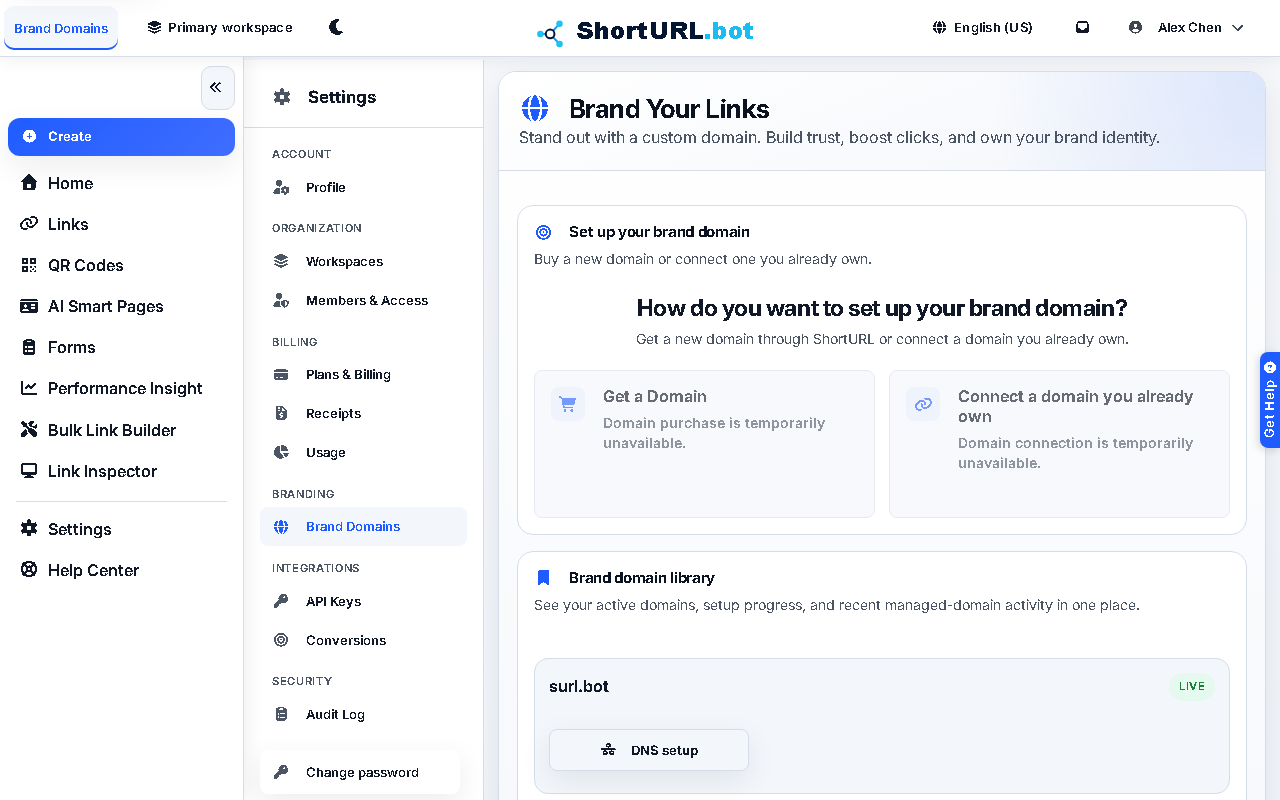
- Open Settings › Branding › Custom Domains (
/app/settings/domains). - Choose Connect a domain you already own for an existing domain. If you need a complimentary custom domain, choose Get a Domain instead. For an existing domain, add the domain you want to connect; the product detects whether it is an apex domain or a subdomain and shows only the DNS records you need:
- All domains: a TXT record for ownership verification.
- Subdomain (e.g.
go.example.com): a CNAME record pointing to the target shown in the product. - Apex domain (e.g.
example.com): the provider-specific apex record shown in the setup panel. For Cloudflare DNS, this is aCNAMErecord with name@; Cloudflare flattens that record automatically.
- Confirm the DNS provider selected in the setup panel. Auto-detection is based on public DNS records, so change it if your registrar and DNS provider are different. For example, a domain bought at Namecheap but delegated to Cloudflare should be updated in Cloudflare.
- If your provider is not listed, choose Other / My provider is not listed. Use the generic record names shown in the panel, or ask your DNS provider where to add TXT, CNAME, ALIAS, ANAME, or flattened CNAME records.
- Update DNS at your active DNS provider using every record shown in the setup panel. If the provider has proxy, CDN, forwarding, parking, or traffic acceleration for the routing record, turn it off until verification succeeds. In Cloudflare, set the CNAME to DNS only (gray cloud), not proxied.
- Watch the setup checks for Ownership, Routing, and SSL. Ownership uses the TXT record, routing uses the CNAME/A/ALIAS record, and SSL becomes active after DNS is accepted.
- If the ownership record is still being prepared, use Refresh DNS setup after a moment. Add the TXT record and the routing record before verification.
- Wait for verification and confirm the domain becomes active in the product.
- Once the domain is live, use it as the default choice for new short links, QR codes, pages, and forms where brand ownership matters.
What to do — Claim or renew a complimentary custom domain
- Open Settings › Branding › Custom Domains and choose Get a Domain.
- Search for an exact domain or describe the domain you want. AI suggestions use an availability check and a budget cap before a final quote is created.
- Review the selected domain, contact profile, registration term, price, renewal behavior, and legal terms before checkout.
- Complete checkout when a paid domain is selected. If checkout is interrupted, use the pending order controls to resume or cancel the order.
- For complimentary custom domains, confirm the complimentary order in the product. Complimentary custom domains count against your custom-domain slots and may have locked-on renewal coverage while active.
- After registration completes, ShortURL provisions the domain into the custom-domain library and edge network.
- Review renewal controls before expiry. Billing-authorized users can renew eligible paid registrations, and active paid registrations can update auto-renew when the registration state allows it.
What to do — Remove a connected domain
- Open Settings › Branding › Custom Domains.
- Open DNS setup for the connected domain.
- Choose Remove and confirm. ShortURL removes the domain from its edge network before removing it from your library.
- After removal succeeds, delete the matching DNS records at your DNS provider if you no longer need this domain connected.
- If removal fails, the domain stays visible so you can retry or contact support. The failure means ShortURL did not finish edge-network cleanup and the domain was not removed.
Use it well — Custom domain management tips
- Connect the domain before the campaign deadline. DNS work is operationally simple, but approval and propagation often take longer than expected.
- Keep branded domain ownership clear across teams so link creation does not depend on one person remembering manual rules.
- Use a current first-party default domain or an active branded domain for new assets.
2s.ggis legacy-only, so existing2s.gglinks can keep working but new links, QR codes, pages, and forms should not be created on it. - Keep domain registrant contact details and payment methods current. Inaccurate contact data, failed renewal payment, or missed renewal windows can cause suspension, expiry, or domain loss.
- Remember that complimentary custom domains consume custom-domain slots. Downgrades can inactivate excess domains, and inactivated domains may not be available for new assets until the plan is restored or usage is reduced.
- If you plan to use branded profile-style pages, read AI Smart Pages so page handles, public URLs, and branded domain choices stay aligned.