Dashboard and link operations
Who this is for
This guide is for signed-in users who actively manage live short links and need one place to create, review, and apply plan-based controls safely.
Before you start
- Sign in to the ShortURL app.
- Confirm that you have permission to manage the relevant workspace or account.
- Confirm the active plan before promising post-publish edits: Free includes creation with custom back-halves, tags, and UTM; Go adds status control; Plus and higher add destination updates, scheduling, expiry, after-expiry redirects, password protection, and list export.
- Know whether the link you are editing already has live traffic or printed distribution.
What to do — Manage links from your dashboard
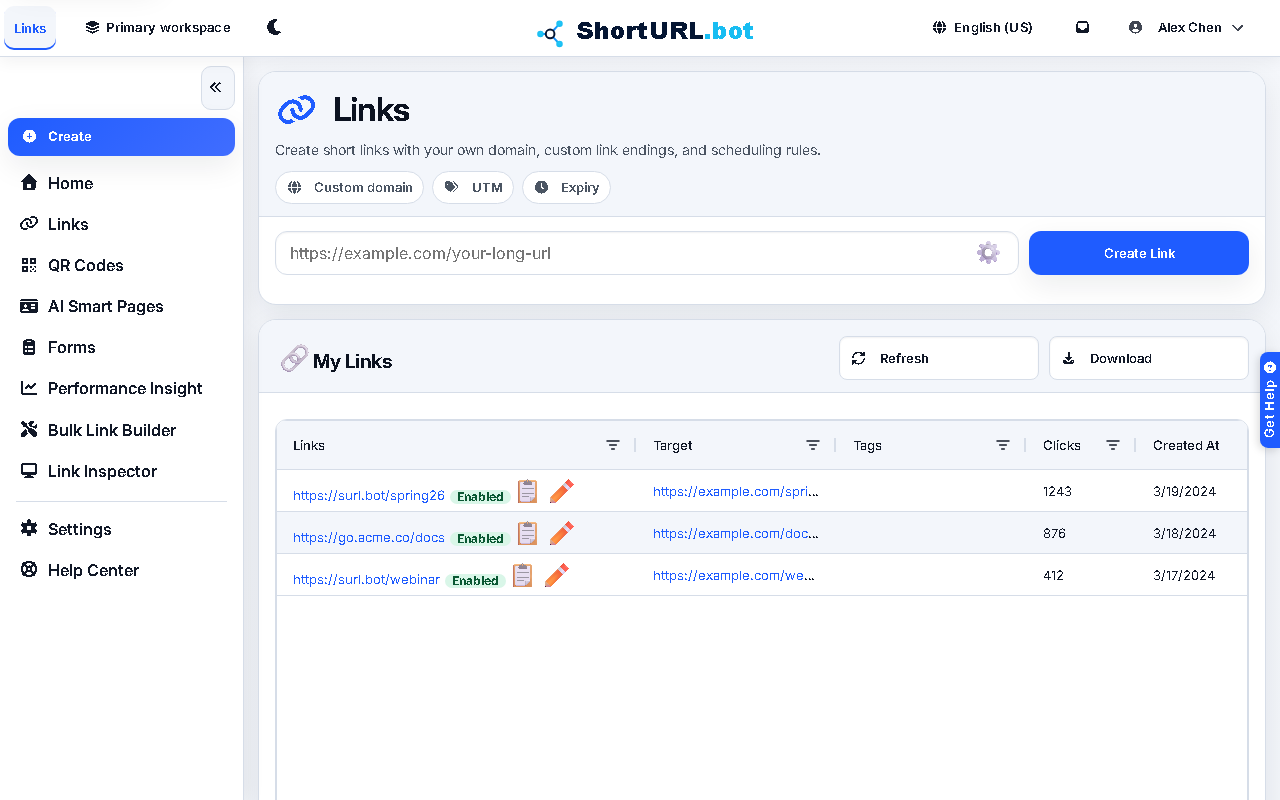
- Open the links workspace or dashboard area for your account.
- Create links with the destination, domain, and optional back-half that fits the campaign or support workflow.
- Use destination edit controls when your plan includes them and the short URL must stay stable.
- Apply lifecycle settings such as enabled or disabled state, active windows, expiry time, and optional post-expiry redirect where your plan supports them.
- Use dashboard summaries and recent-item visibility to confirm whether the most important links are still aligned to current goals.
Use it well — Link lifecycle management tips
- Do not replace a live destination casually. If a short URL has already been distributed, the edit must be intentional and documented.
- Create new links on the current default domain or an active branded domain. Existing
2s.gglinks continue to work, but2s.ggis not available for new link creation. - Use lifecycle controls for campaign timing when your plan includes them rather than deleting and recreating links. Stable short URLs are easier to audit and explain.
- Keep high-risk destinations out of production until you have reviewed them in Link Inspector.