Forms workspace
Who this is for
This page is for teams collecting surveys, polls, and operational feedback without leaving the ShortURL product they already use for links, domains, and reporting.
Before you start
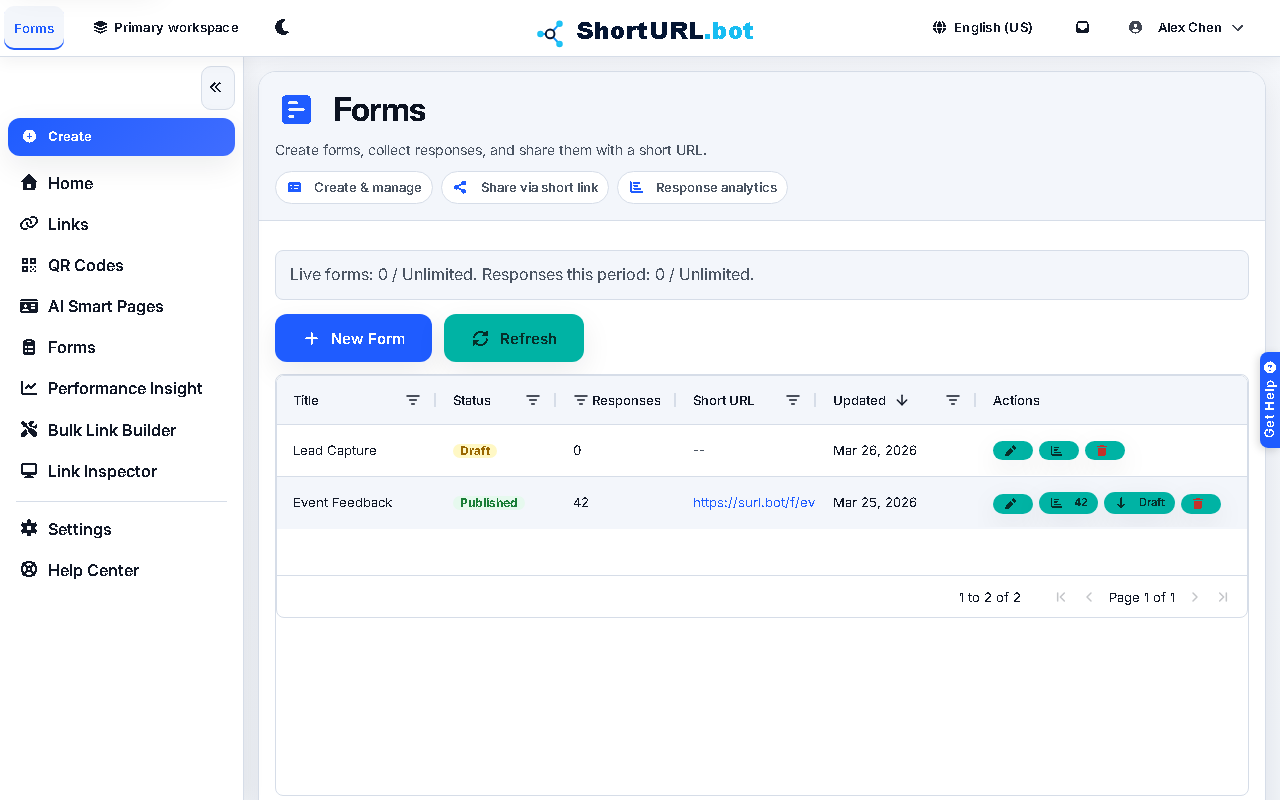
- Sign in to the app and open Forms from the sidebar at
/app/forms. - Confirm which short-link domain should be used when the form is published.
- Do not choose
2s.ggfor new forms. Existing forms that already have a2s.ggshare URL continue to work. - Decide whether you need a quick feedback capture, a poll, or a longer-form response flow before you start drafting questions.
- Prepare your own privacy notice and consent wording if the form collects personal information.
What to do — Create and publish a form
- Open Forms from the app sidebar at
/app/forms. - Create a new draft and set the title, description, theme, and short-link domain.
- Add and reorder supported question types: single choice, multiple choice, short text, long text, rating, and scale.
- Open the language controls if the form needs localized text. Choose the default locale, enable the target locales, and review each copied locale before publishing.
- If AI Assist is available on your plan, use AI Translate All to generate draft translations for copied locales. Review the translated form text before saving.
- Configure advanced settings such as notification email, thank-you behavior, and response controls when they apply.
- Save the draft, publish the form, and copy the generated short share URL.
- Use the embed code when the form should appear on your own site instead of being shared as a standalone short link.
- Return to the same workspace later to unpublish, edit, delete, or republish the form as your collection window changes.
What to do — Review responses
- Open the form's response analytics view.
- Review total responses and per-question breakdowns.
- Export CSV when you need offline analysis, handoff, or archival records.
- If response intake reaches the plan limit plus grace band, new submissions pause until the quota resets or the plan changes.
Use it well — ShortURL forms workflow tips
- Keep the short-link domain aligned with the same branded domain strategy you use for campaign links and QR codes.
- Use rating and scale questions for quick numeric readouts and short or long text questions when you need open feedback.
- If the form is tied to a limited campaign window, unpublish it when collection ends instead of deleting the draft.
- Review the response analytics tab after launch to spot completion issues before distributing the form more widely.
- Treat AI translation as a draft accelerator, not final localization. A fluent reviewer should check any customer-facing form before launch.
Plans and limits
- All plans include form drafts, builder access, and publishing.
- Go unlocks response analytics.
- Plus unlocks advanced response analytics.
- Current quotas for published forms and responses per billing period scale by plan:
- Free: 1 live published form and 250 responses.
- Go: 3 live published forms and 2,000 responses.
- Plus: 10 live published forms and 5,000 responses.
- Pro: 25 live published forms and 25,000 responses.
- Premium: 100 live published forms and 100,000 responses.
- Enterprise: custom limits.
- Response intake includes a small grace band before new submissions are paused: Free continues to 300 total responses, Go to 2,500, Plus to 6,000, Pro to 30,000, and Premium to 120,000.